
Tesla Model S: Module - Sunroof Controller (Remove and Replace)
Tesla Model S (2012-2026) Service Manual / Electrical / Module - Sunroof Controller (Remove and Replace)
Removal
- Remove the body control module (BCM) (refer to procedure)
- Remove the 4 bolts and 1 nut that secure the sunroof controller
mounting bracket to the body (torque 8 Nm).
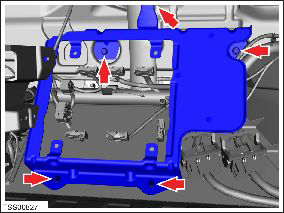
- Carefully turn the mounting bracket over.
- Remove the 3 nuts that secure the controller to the bracket
(torque 5 Nm).
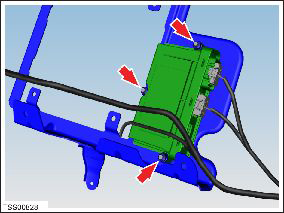
- Disconnect the 2 controller harness connectors.
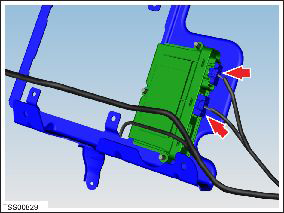
- Remove the controller from the mounting bracket.
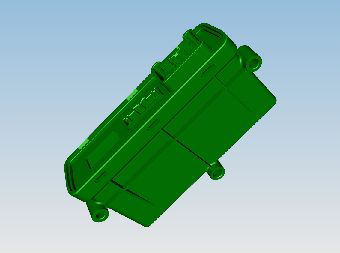
Installation procedure is the reverse of removal, except for the following: Use Toolbox to update or redeploy the firmware:
- If the vehicle is not running the latest firmware, run the "Vehicle Firmware Update" procedure.
- If the vehicle is running the latest firmware, run the "Firmware Redeploy" procedure.
READ NEXT:
 Module - Sunroof Controller (RHD) (Remove and Replace)
Warning: If the 12V power supply is disconnected, do
not attempt to open any doors with door glass in closed position.
Failure to follow this instruction could result in door glass
shat
Module - Air Suspension - ECU (Remove and Replace)
Warning: If the 12V power supply is disconnected, do
not attempt to open any doors with door glass in closed position.
Failure to follow this instruction could result in door glass
shat
Module - Air Suspension - ECU (Remove and Install)
Warning: If the 12V power supply is disconnected, do
not attempt to open any doors with door glass in closed position.
Failure to follow this instruction could result in door glass
shat
SEE MORE:
Seat Belt Assembly - 3rd Row - LH (Remove and Replace)
Removal
Maneuver the 3rd row seat for access to the anchor points (x4).
Remove the bolts (x4) that secure the seat belt to the body and
seat back (torque 45 Nm).
Release and remove the seat belt buckle webbing from the main
assembly.
Release
Press Sensor - Door - Exterior Handle - Rear - LH (Remove and Replace)
Removal
Remove door handle for access (refer to procedure)
Position handle assembly on a soft working surface.
Remove door handle rear seal.
Remove cable ties securing door pressure sensor and motor
wiring.
Remove press sensor screw.
© 2019-2026 Copyright www.tesms.org
