
Tesla Model S: Motor - Seat Tilt - Driver's Seat (Remove and Replace)
Tesla Model S (2012-2026) Service Manual / Seats / Motor - Seat Tilt - Driver's Seat (Remove and Replace)
Removal
- Remove the driver's seat (refer to procedure).
- Place the seat on a clean work surface.
- Remove the screw that secures the inner side cover to the seat
(torque 1 Nm).
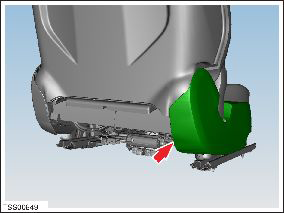
- Carefully release the inner side cover from the retaining bracket.
- Release the clip that secures the seat harness to the cover.
- Remove the inner side cover.
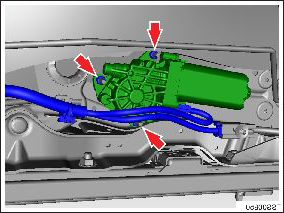
- Disconnect the seat tilt motor connector and harness.
- Remove the outboard nuts (x3) that secure the seat tilt motor to
the seat (torque 8 Nm).
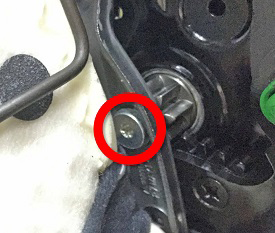
- Remove the inboard screw that secures the seat tilt motor to the
seat frame (torque 12 Nm).
- Remove the seat tilt motor.
READ NEXT:
 Motor - Seat Height - Driver's Seat (Remove and Replace)
Removal
Power the seat fully upward, away from the floor.
Remove the driver's seat outer side cover (refer to procedure).
Disconnect the seat height motor connector and harness.
Switch - Seat Height Adjust - Driver's Seat (Remove and Replace)
Removal
Remove driver seat outer side cover (refer to procedure)
Remove screws (x3) securing lumbar adjust switch to cover
(torque 1 Nm).
Switch - Back Rest and Cushion Adjust - Driver's Seat (Remove and Replace)
Removal
Remove driver seat outer side cover (refer to procedure)
Remove screws (x4) securing back rest and cushion adjust switch
to cover (torque 1 Nm).
SEE MORE:
Panel - A Pillar Trim - Middle - LH (Remove and Replace)
Removal
Position vehicle with clear access to door assembly.
Open vehicle door.
Remove LH instrument panel side cover (refer to procedure)
Release location pins (x2).
Caution: Take care not to damage component(s).
Pull Onto Flatbed Truck From Rear
(Using Tow Eye)
NOTE: If Model S has no low voltage power, you need an
external low voltage power supply to open the hood or
use the touchscreen. See If Vehicle Has No Power.
NOTE: Vehicles equipped with a hitch receiver cannot be
pulled from the rear tow eye. Use the tow bar or hitch
receiver only to pull the
© 2019-2026 Copyright www.tesms.org
